
Whatsapp
video calling

Our video guide and printables.

Video calling

Learn how to video call using alternative apps.

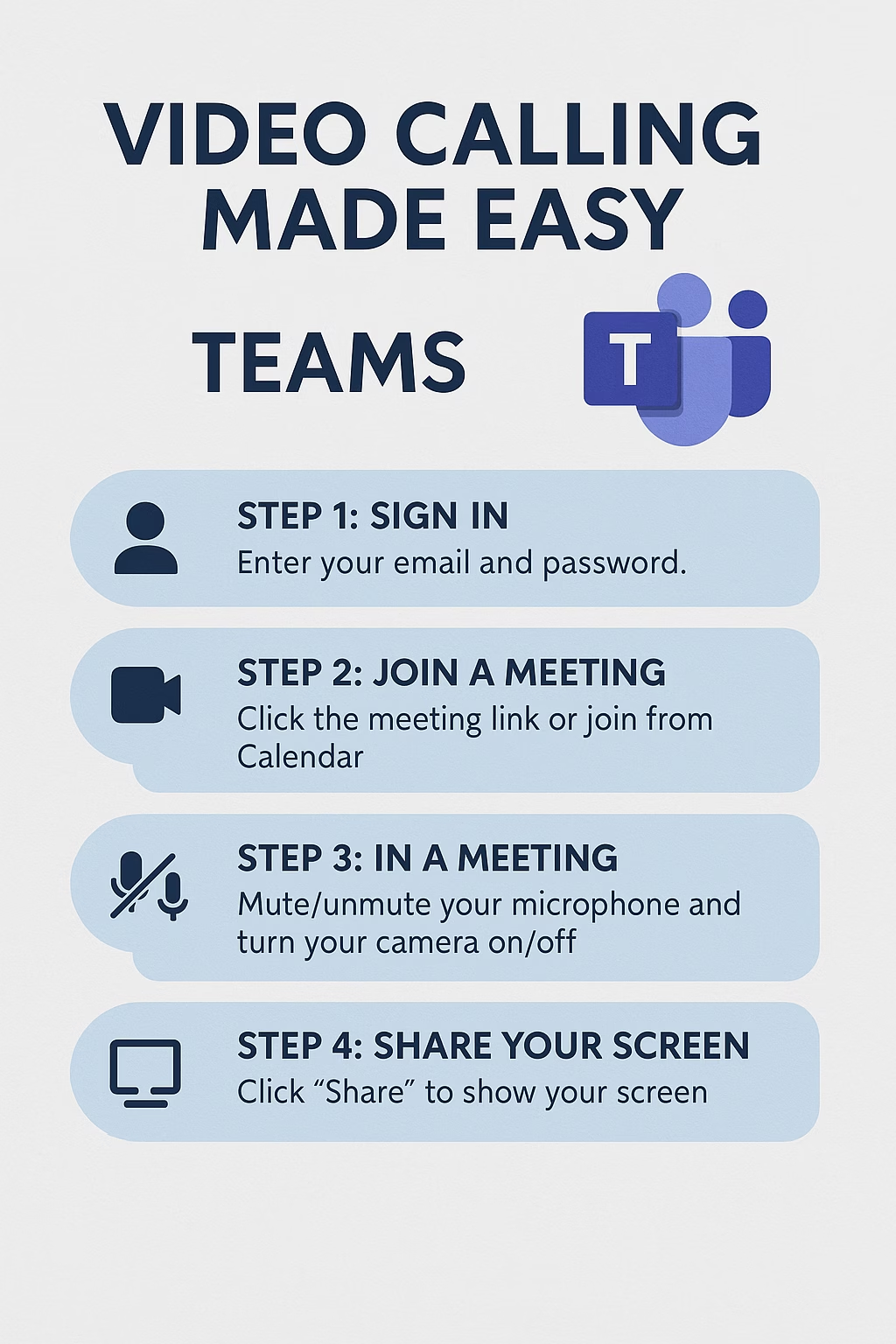
How to use Microsoft Teams

STAYING CONNECTED

The internet is a fantastic resource to learn more about how to navigate the internet for connection, learning and entertainment. Check out links, videos and more to continue your journey.

frequently
asked questions

  • On Zoom, yes – for hosting, but not always for joining (you can use a meeting link).

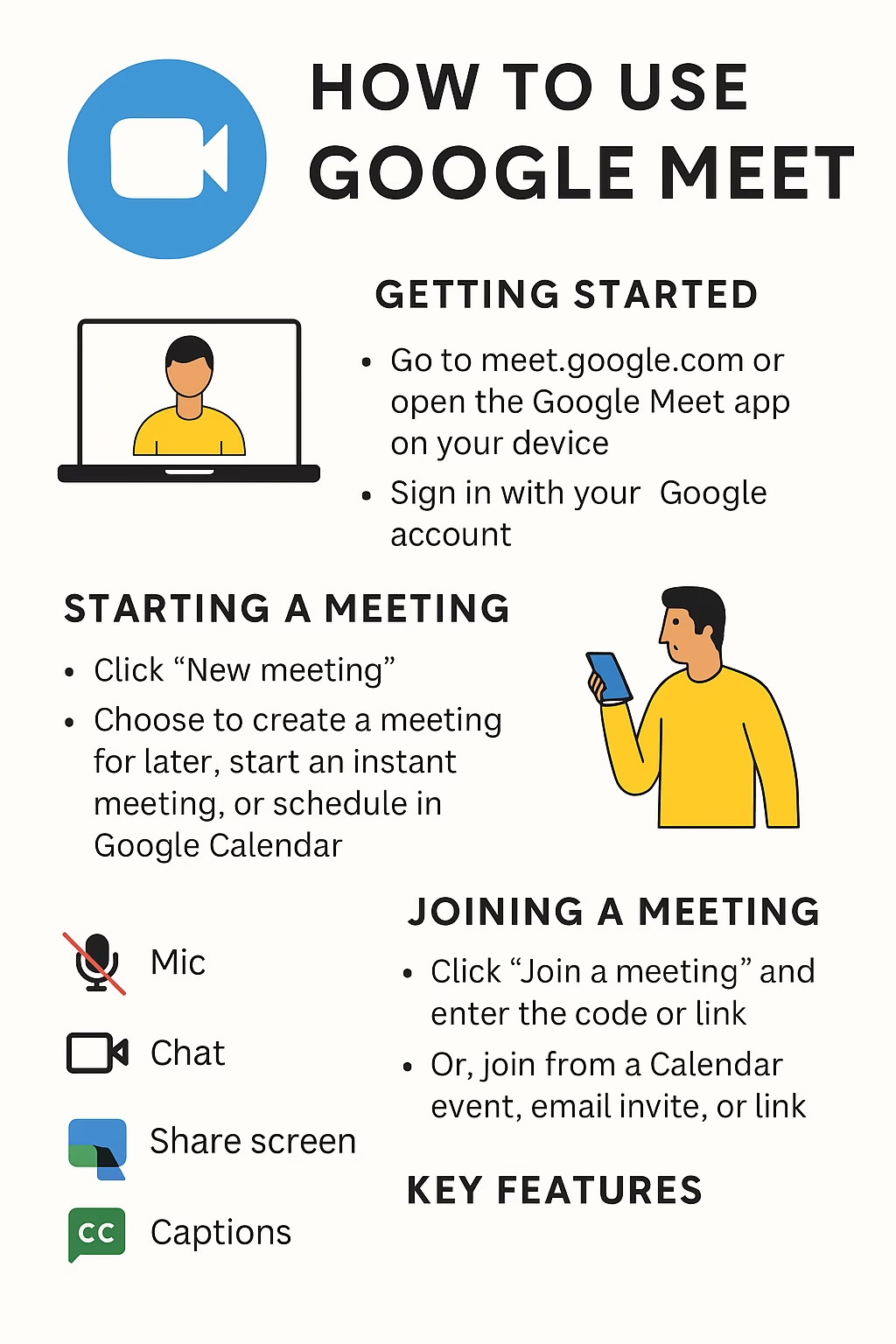
  • On Google Meet, you’ll need a Google account to host but can usually join with a link.

A smartphone, tablet, or computer with a camera and microphone. A stable internet connection is also important.

Check that your microphone and camera are turned on in the app. Look for the mute/unmute and video buttons during the call.

Yes. Google Meet offers live captions, and Zoom has settings for captions if enabled by the host.

  • Zoom: Free for meetings up to 40 minutes with 3+ people. One-to-one calls are usually unlimited.

  • Google Meet: Free for most calls up to 60 minutes.

Only join calls from people you trust. Don’t share meeting links publicly. Use the “waiting room” feature on Zoom or check participants before starting.

Turn off your camera and just use audio – this often improves quality. Try to sit closer to your Wi-Fi router.

Yes. Both Zoom, Teams and Google Meet have a “Share Screen” option – helpful for showing documents, websites, or photos.